SEAMLESS SPECIFICATION
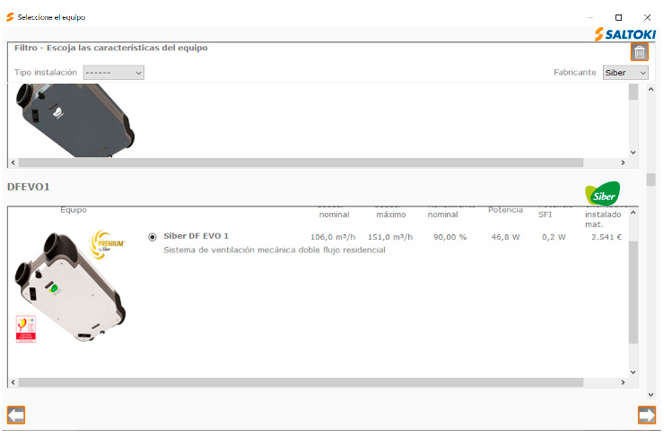
Integrate Siber units directly into Ce3X without manual calculations. Automatically load curves, technical datasheets and certified performance values, ensuring consistency with official documentation.



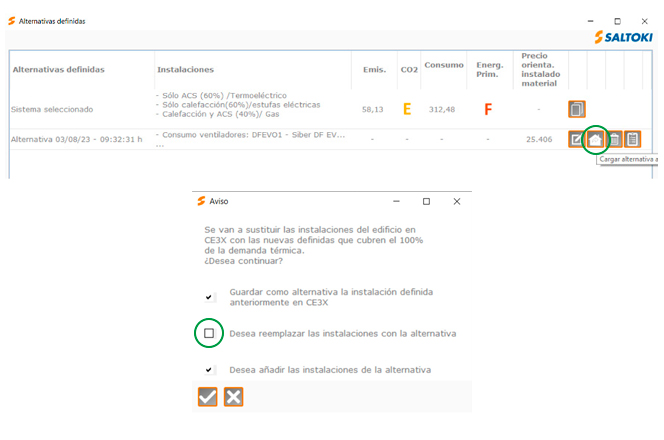
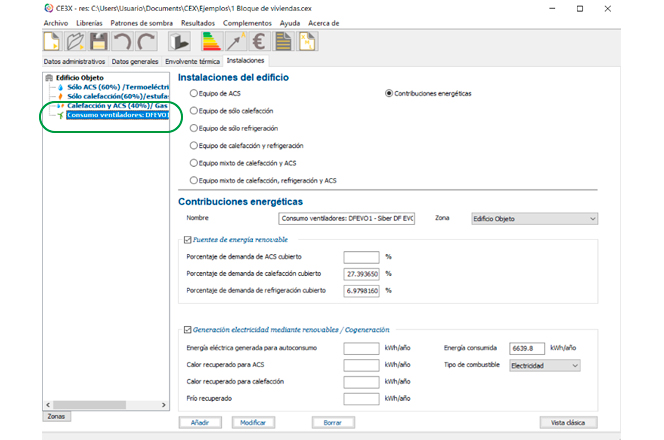
You can now integrate Siber controlled mechanical ventilation systems into your Ce3X projects, the official software for energy certification of existing buildings, thanks to the "Saltoki Installations" add-on. It allows you to include our solutions in the ventilation section and justify CTE HE-0, HE-1 and HE-4 requirements. This integration improves energy efficiency, speeds up certification for renovation projects, and helps meet the Spanish Building Technical Code requirements.
Integrate Siber units directly into Ce3X without manual calculations. Automatically load curves, technical datasheets and certified performance values, ensuring consistency with official documentation.

Drastically reduce justification times for HE-0, HE-1 and HE-4. Select the unit directly in the software and generate the energy report in minutes, without duplicating information across tools.
Ensure traceability between the project, report and final certificate. Data is synchronized with Siber BIM catalogs and product datasheets, reducing errors and simplifying audits and technical reviews.
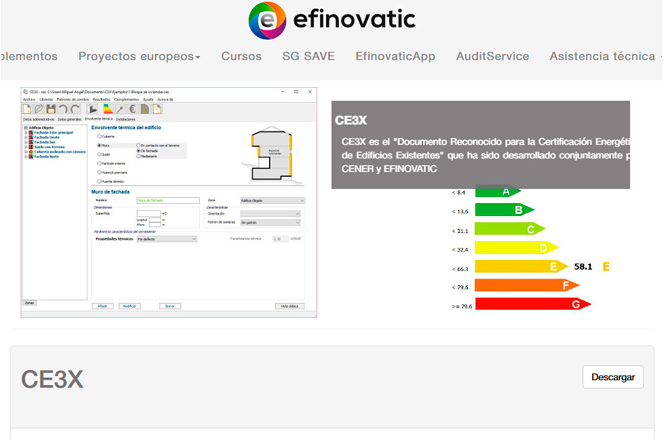
To access the software and use this new feature, you need to download the following programs and add-ons.

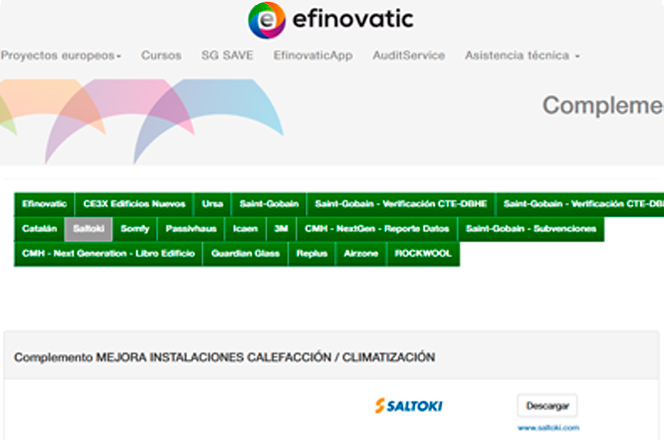
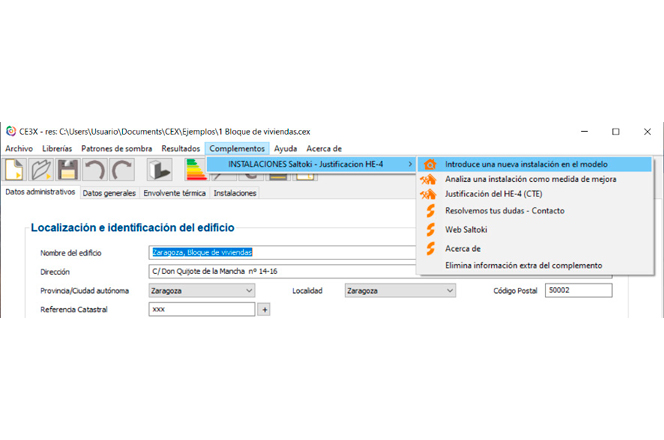
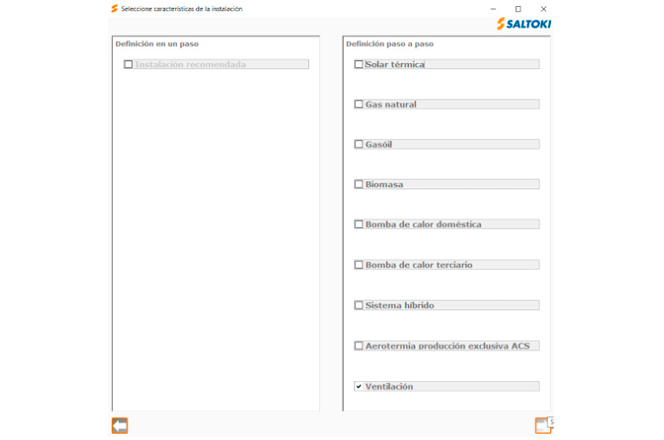
Saltoki installations add-on in CE3X, including the option to install Siber ventilation equipment.